
This guide presents the basic workflow of the Linux Malware Detect (Maldet) Web interface. The screenshots show the interface in English.
1. Access and dashboard
Open the URL configured by the administrator (by default, http://127.0.0.1:8080). On the Dashboard, check the Maldet version, signature set, active scan count, monitor status, and server resources.
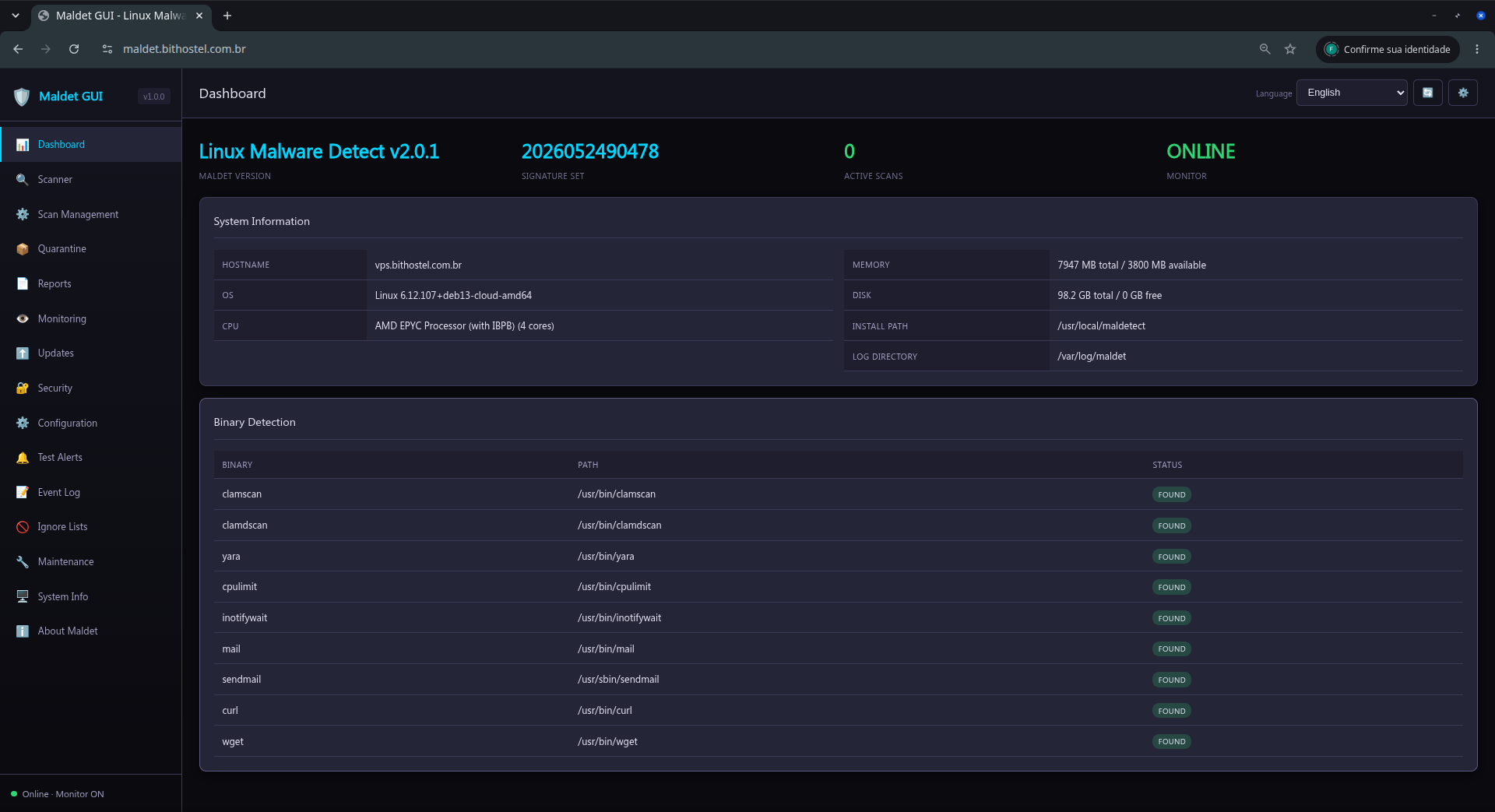
The dashboard also reports available binaries, including clamscan, clamdscan, yara, and inotifywait. A FOUND status means the component was detected.
2. Run a scan
Open Scanner in the side menu.
Enter the directory to analyze.
Select the scan type and configure exclusions if needed.
Start the scan and note the generated scan ID.
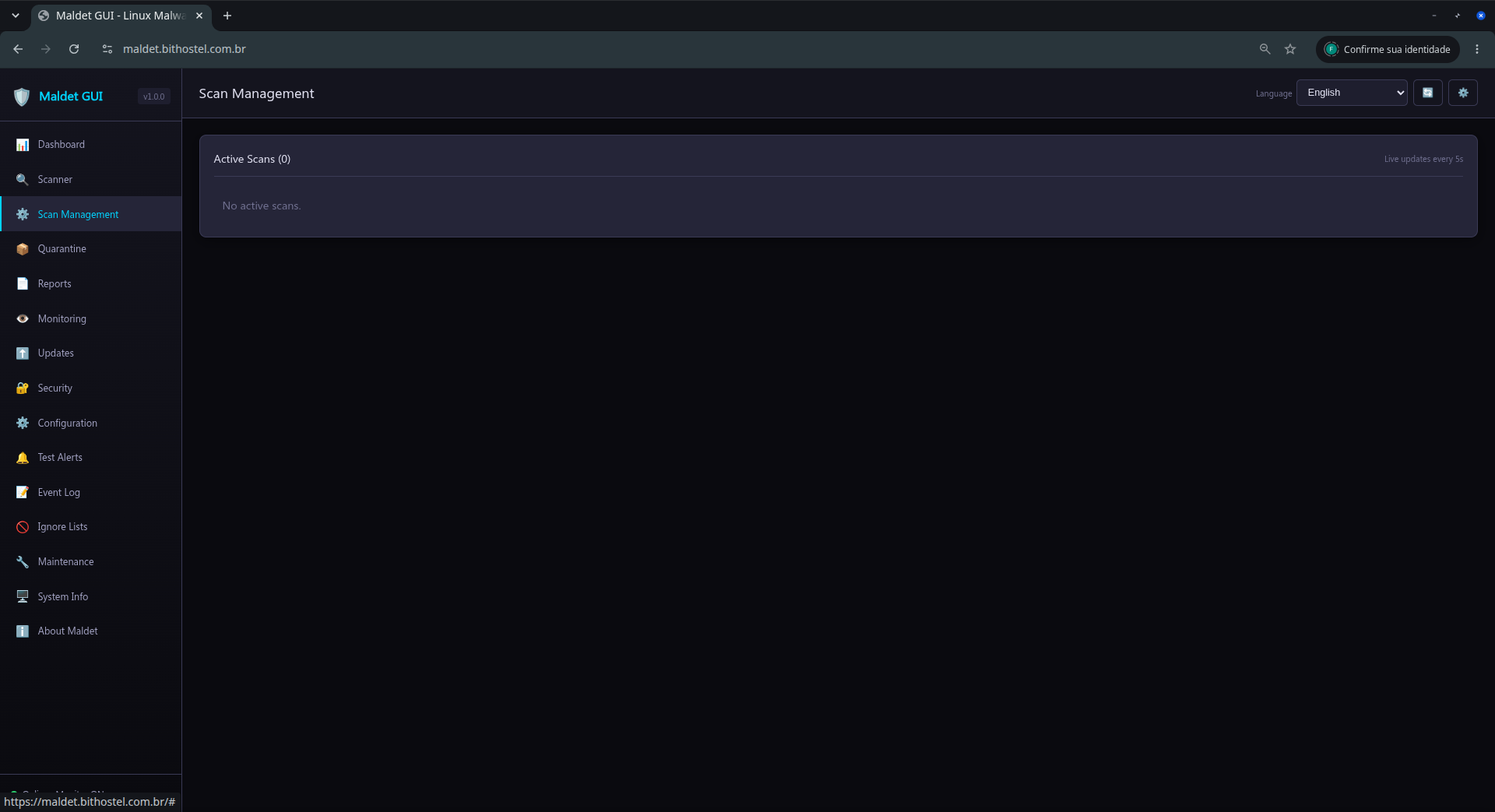
Background scans appear in Scan Management.
3. Monitor and control scans
Scan Management lists processes that are actually running, their PIDs, state, and progress. Use Pause, Continue, or Stop as needed. Use Kill only when a process is unresponsive.
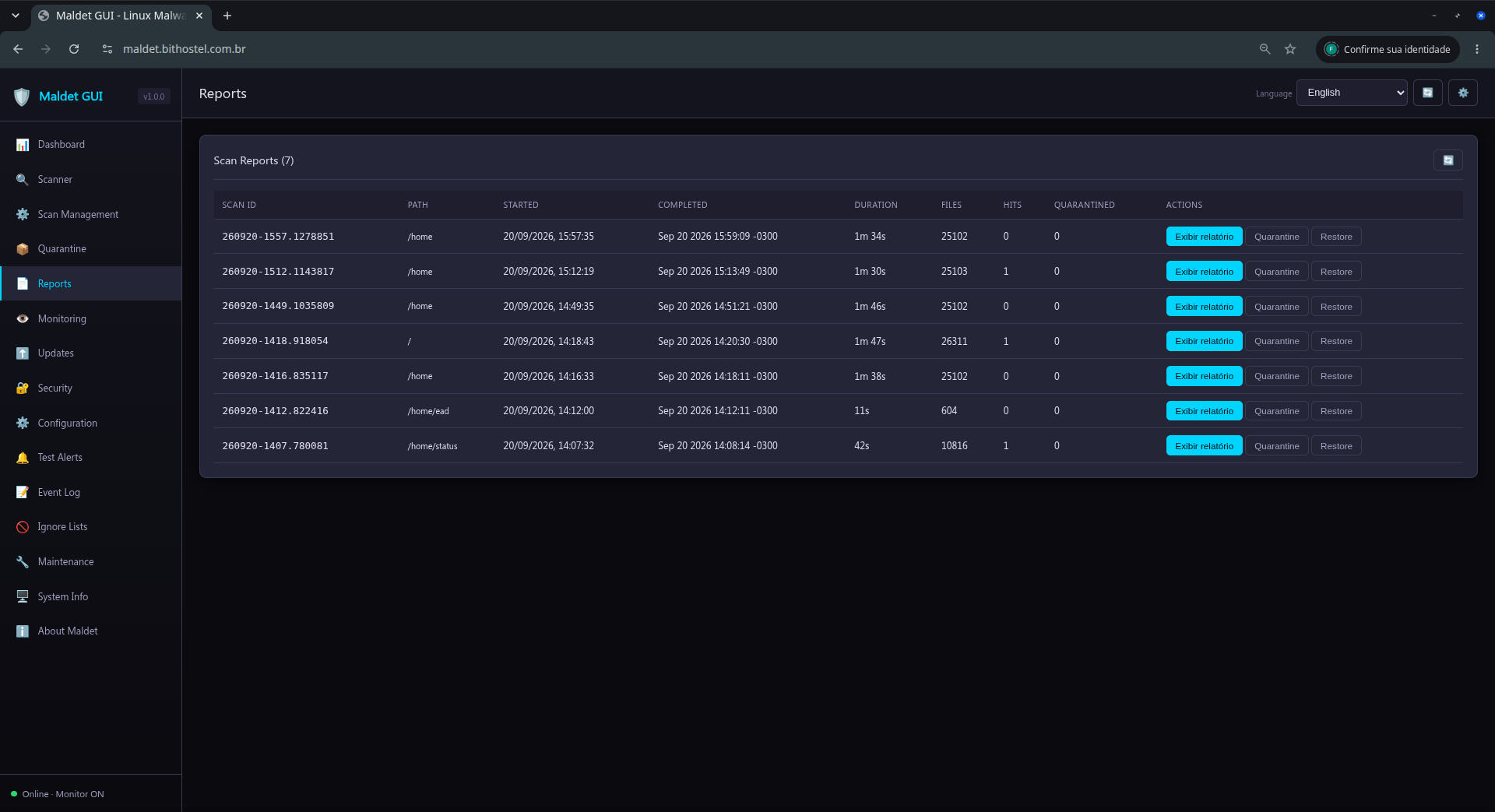
After a scan finishes, open Reports to review its result. A process that no longer exists must not remain counted as active; refresh the page if the server was restarted or the connection was interrupted.
4. Quarantine and reports
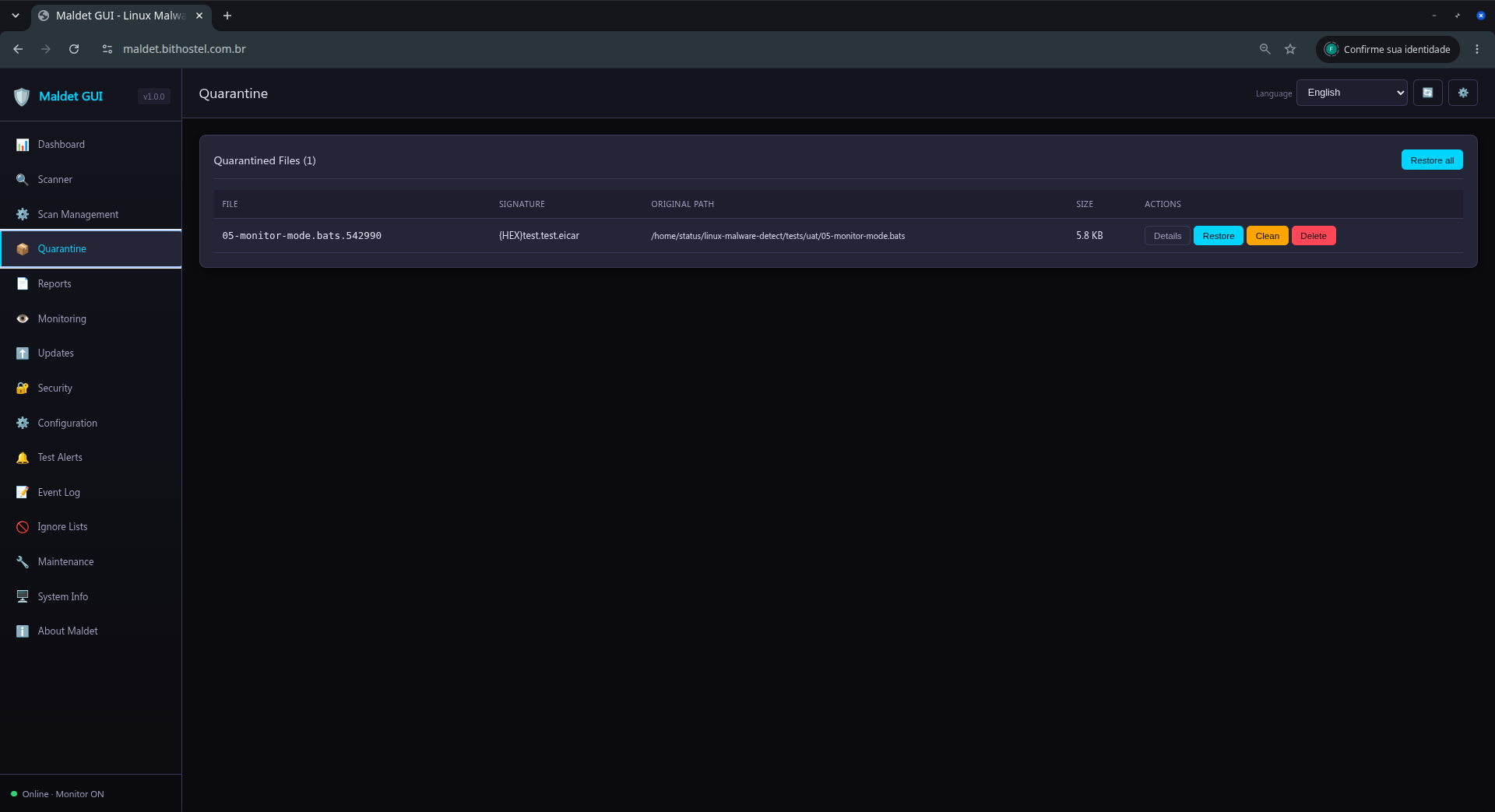
Quarantine lists files isolated by Maldet. Restore an item only after confirming that it is legitimate. Use bulk operations carefully.
In Reports, select a scan to review analyzed files, detections, actions, and completion time.
5. Monitoring and updates
Monitoring controls the inotify monitor and the watched paths. Use this page to start, stop, or reload monitoring.
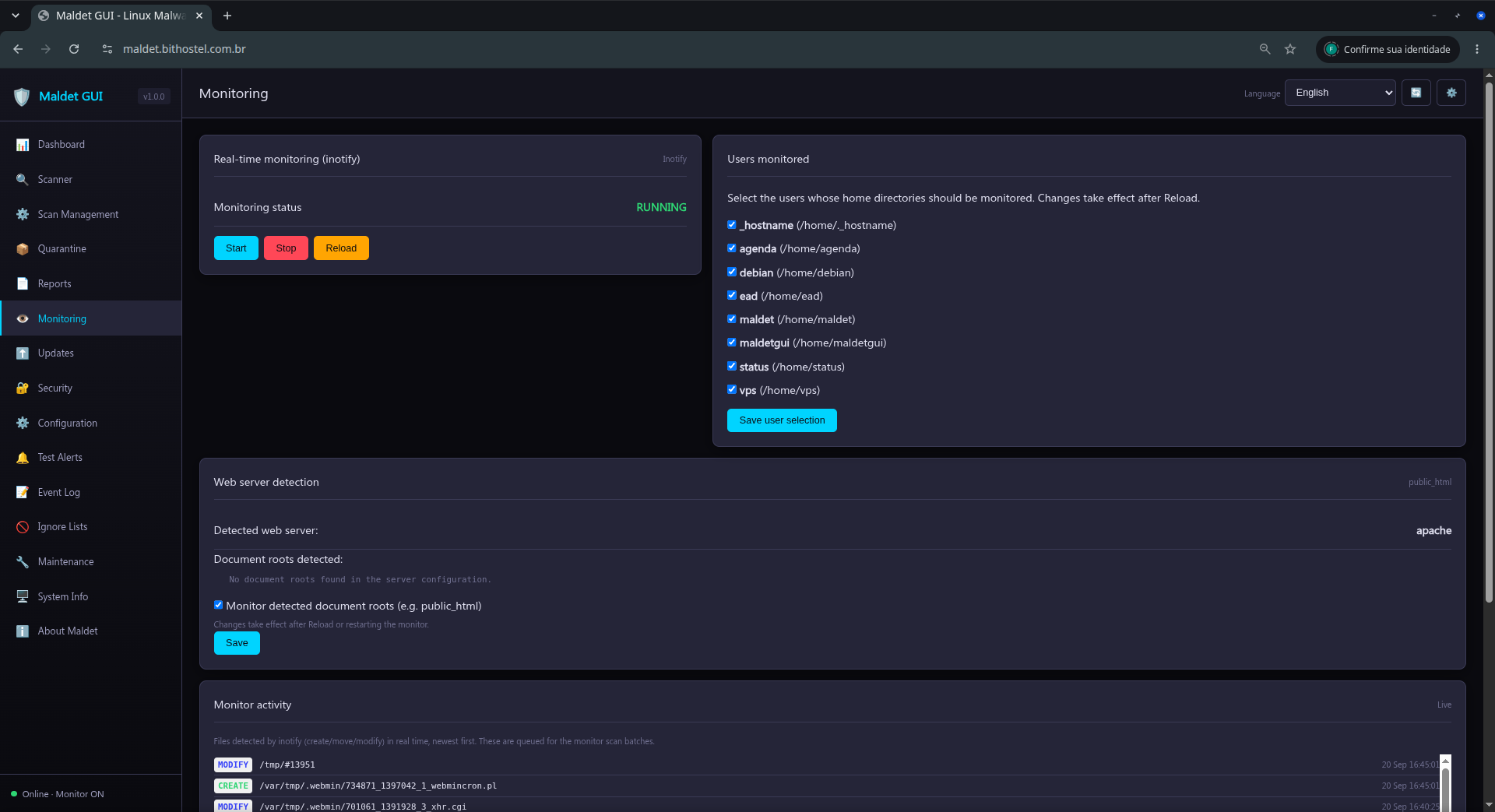
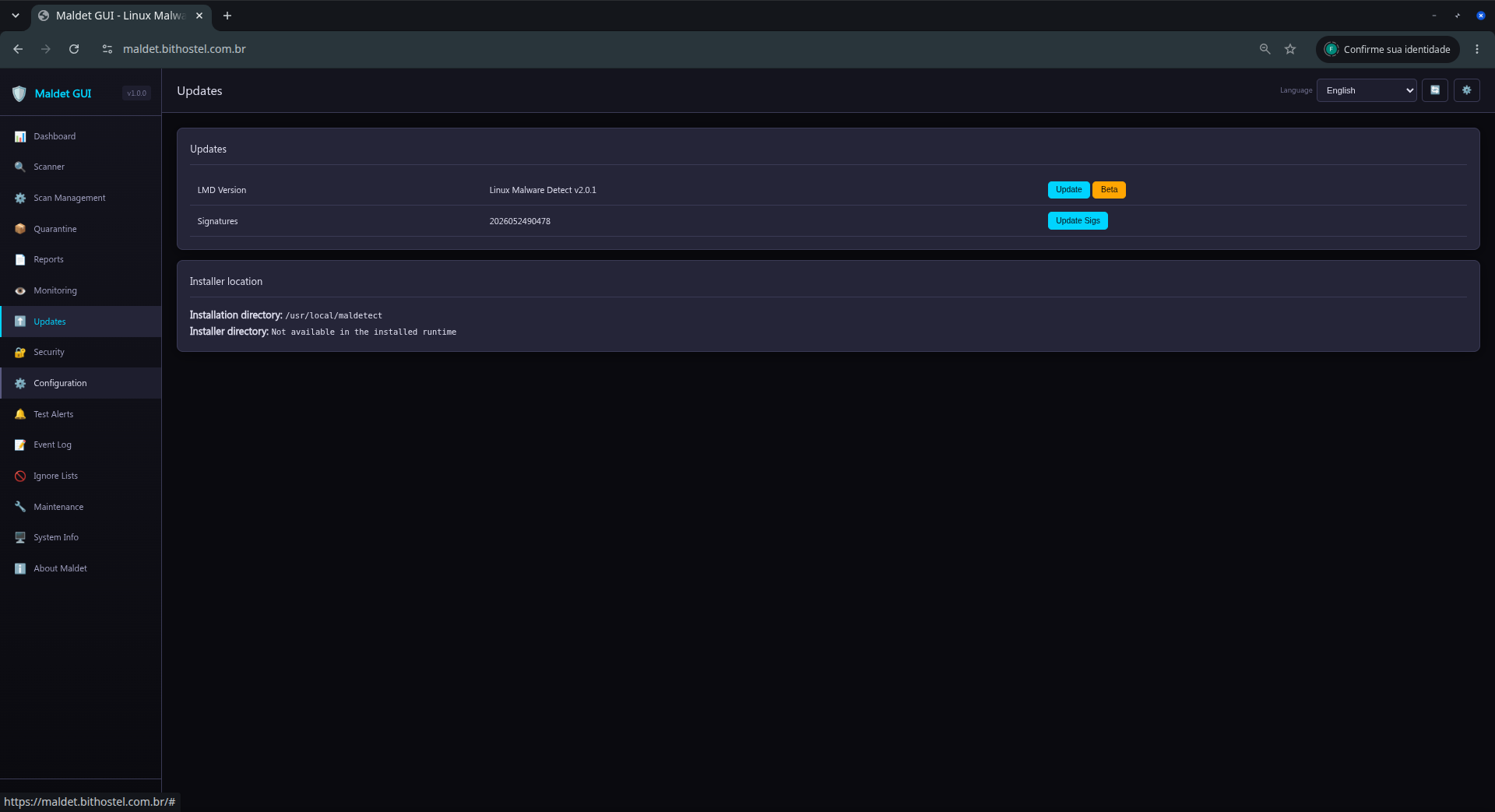
In Updates, update Maldet signatures and, when available, the ClamAV database. Wait for the completion message before closing the page.
6. Security, configuration, and alerts
Use Security to review and adjust access controls. In Configuration, change only known options; worker, CPU/IO limit, engine, and alert changes may significantly affect server resource usage.
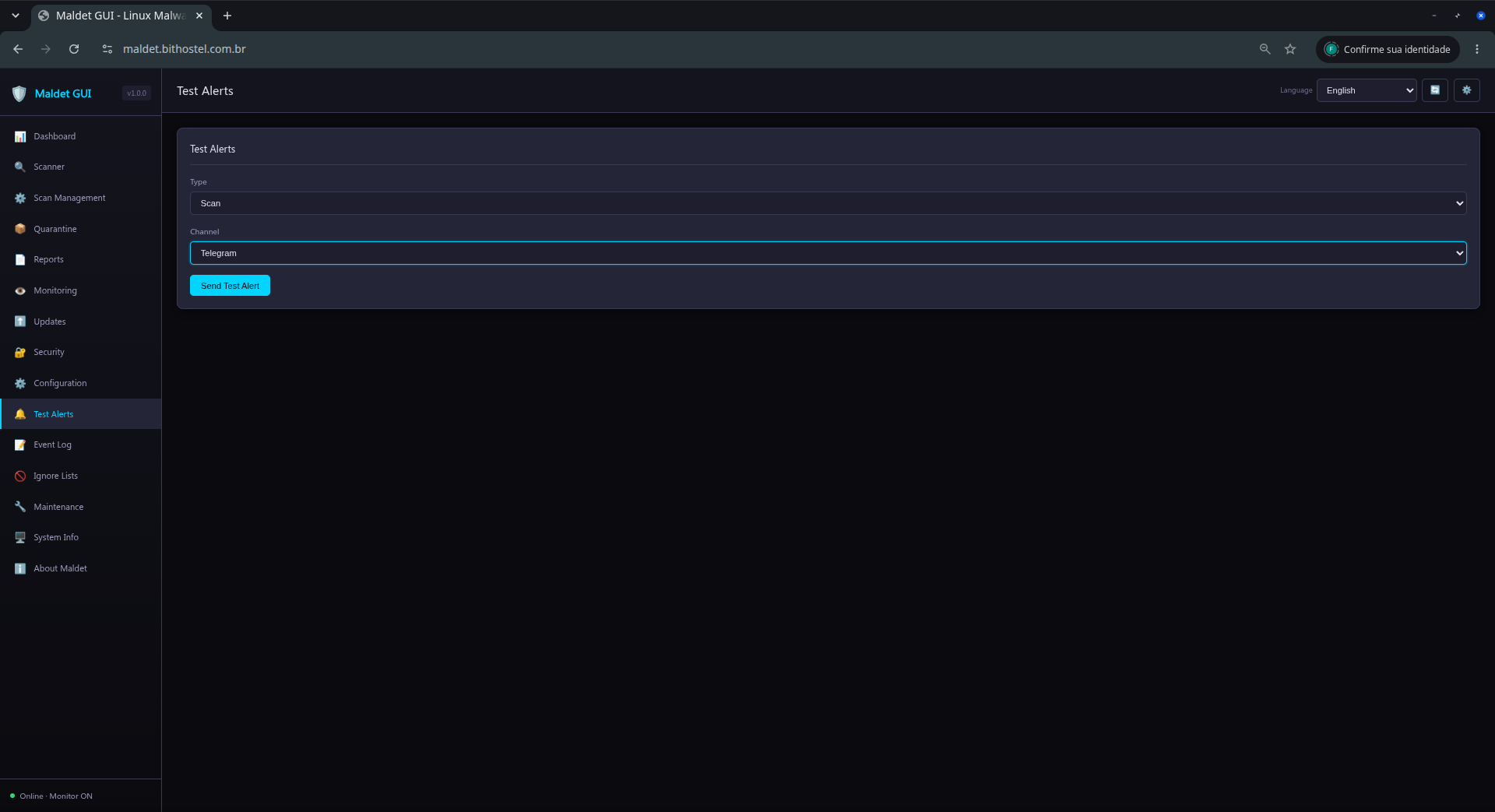
In Test Alerts, select a channel and send a test notification. Never include tokens or passwords in screenshots, logs, or support requests.
7. Logs, ignore lists, and maintenance
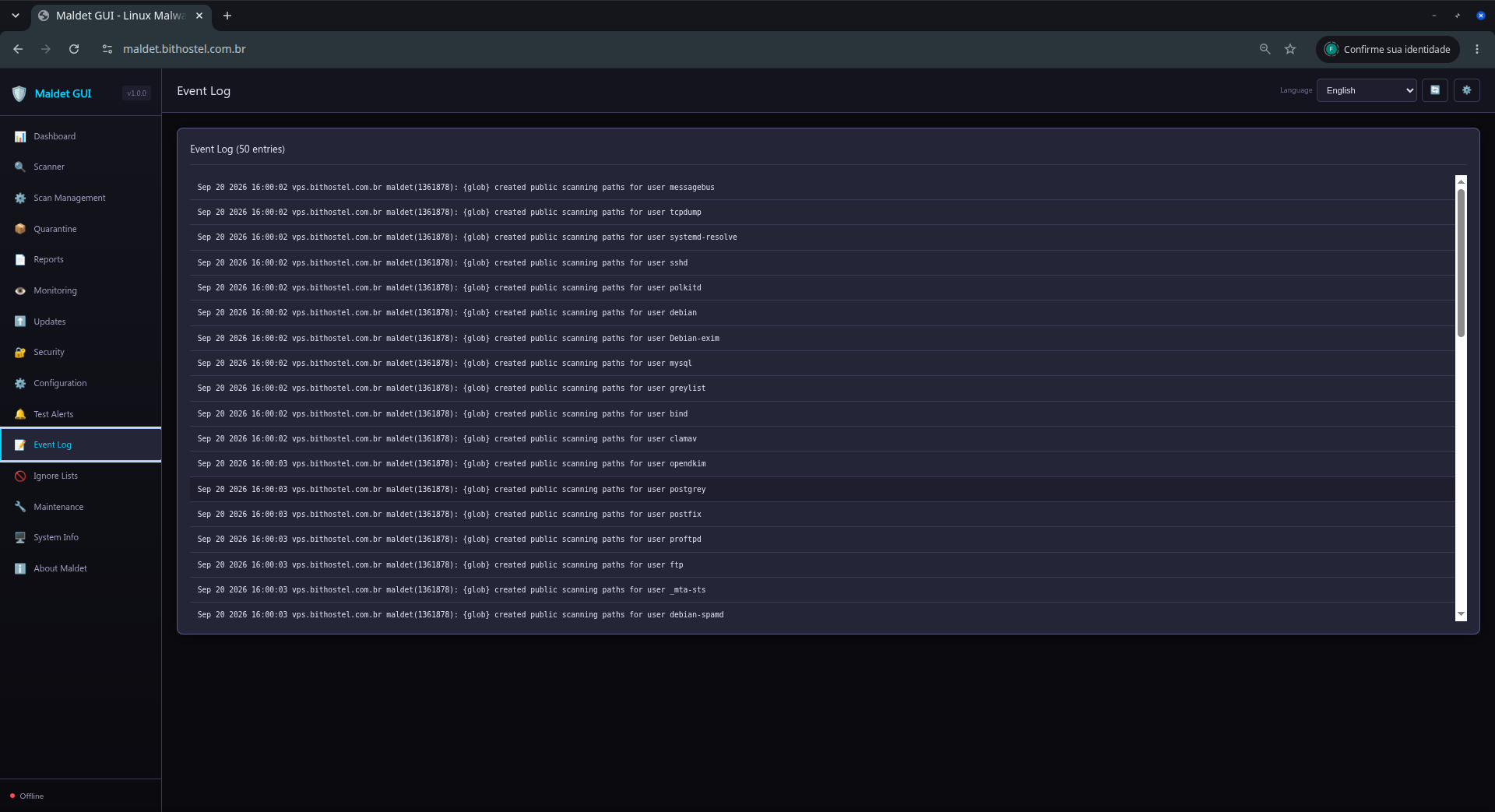
The Event Log helps diagnose scan starts and completion, alerts, errors, and updates.
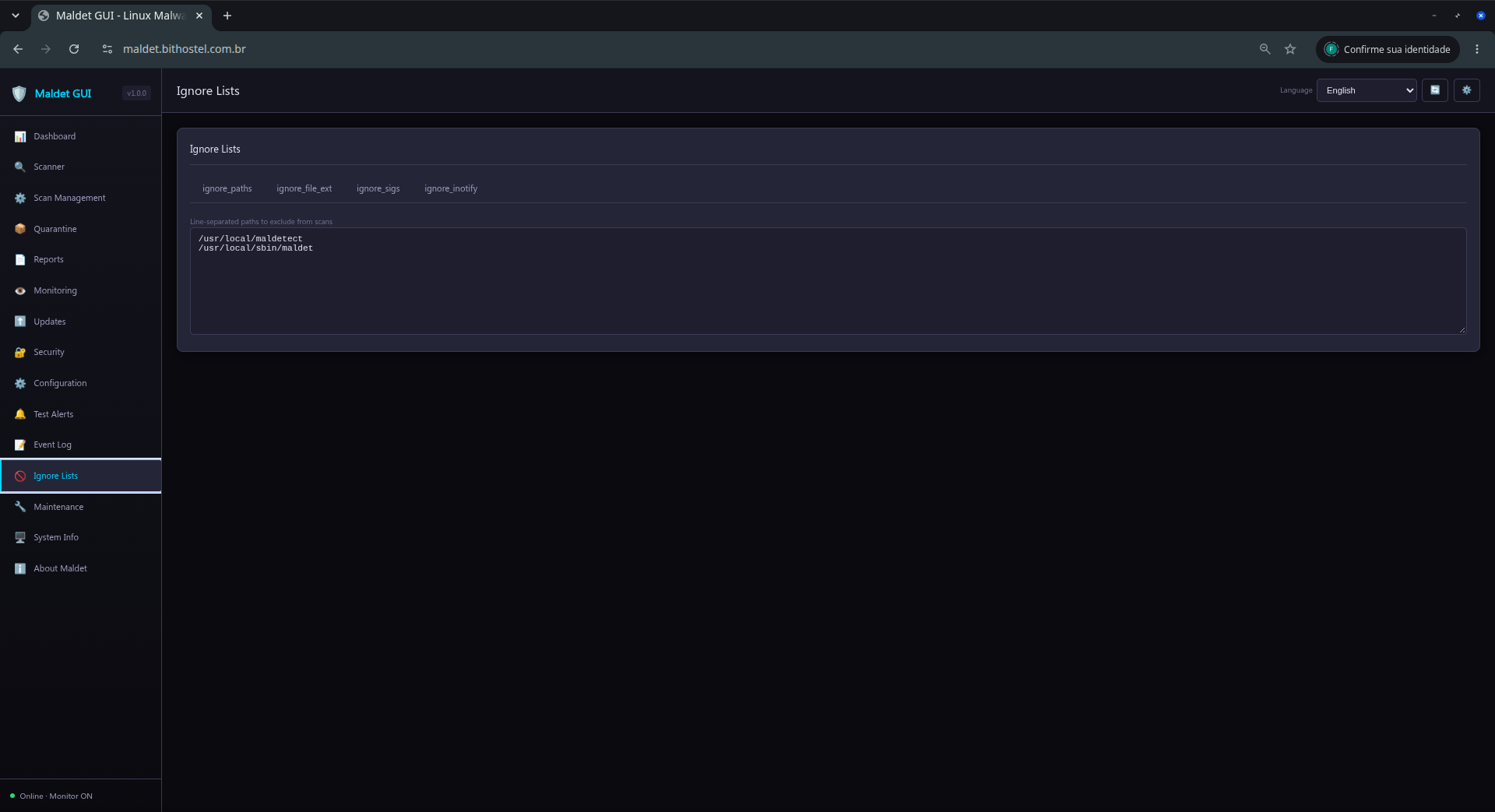
Use Ignore Lists for paths, extensions, or specific rules. Prefer narrow rules so that valid detections are not hidden.
Maintenance organizes history files, removes stale metadata, compresses old sessions, and archives older sessions. It does not start scans or automatically remove legitimate files from quarantine.
8. System information and troubleshooting
System Info shows the hostname, operating system, CPU, memory, disk, installation paths, and detected commands. Use this information when investigating a failure or requesting support.
If the interface remains on a loading screen, perform a hard refresh (Ctrl+F5), check /api/check, and review the launcher log. For remote access, use a reverse proxy with authentication and TLS; do not expose the GUI port directly to the Internet.